In the future, we will be living in a hybrid world in which data resides not only on premise in our local data center, but in the cloud at a Microsoft installation. I cannot help but think about asking Weird Al Yankovic to re-write Madonna's 1984 hit song Material Girl to fit our situation?
As a database administrator, one might wonder: How can I easily transfer data back and forth between On Premise and Azure SQL databases?
Solution
Sometimes solutions to new problems lie in the answers to old ones. Microsoft has had the concept of a linked server since version 7.0 of the database engine. Many other database providers have similar concepts. For instance, Oracle has the idea of a Database Link to access external data sources.
To solve our hybrid data center problem, we will configure a linked server to enable the SQL Server Database Engine to execute commands against data sources outside of the local instance of SQL Server.
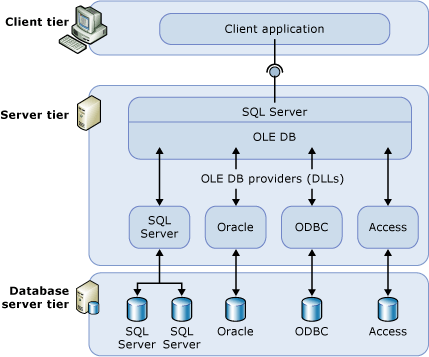
The following MSDN diagram shows the basic configuration of a linked server.
Business Problem
I can image in the future that a small publishing company might buy an on-line ordering system which was built with Microsoft Azure Technologies. Since the company has been in business for many years, they might have an on premise ERP system that runs on top of a SQL Server database. Your manager wants to have a daily feed of orders downloaded from the cloud into ERP system.
What is an easy way to accomplish this task without having to know a Extract, Transform, and Load (ETL) tool such as SQL Server Integration Services (SSIS)?
Custom Create Wizard
The article assumes that you have an Azure account with credits to spend.
The first step is to launch the custom create wizard to create a new database. This can be found by clicking the new button on the bottom left corner. Choose the data services, SQL Database and custom create options. You should see the pop up window below.
The first step is to launch the custom create wizard to create a new database. This can be found by clicking the new button on the bottom left corner. Choose the data services, SQL Database and custom create options. You should see the pop up window below.
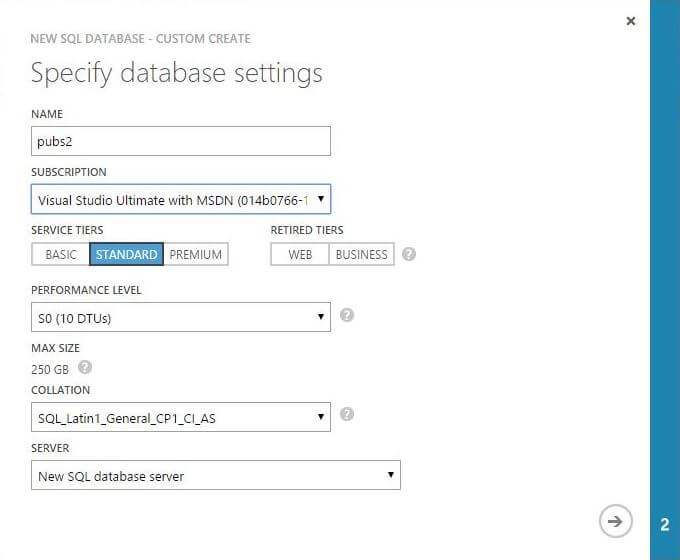
For this demonstration, we are going to create a pubs database using my MSDN subscription. The default performance level is a standard database with a service level agreement of S0. This choice gives us 10 DTUs of processing power. Also, we can choose the collation of the database and whether or not we want a new database server. Every database server, which is a logical concept, has a maximum capacity of 2000 DTUS.
So what does this all mean to you?
A database in the cloud can live on any hardware rack or physical server in the Azure Data Center. You are charged by performance level which equates to how many DTU's you can consume. Database Throughput Units (DTU) are based on a blended measure of computer processing unit, memory, reads, and writes. It provides a way to describe the relative capacity and performance of the various database tiers (Basic, Standard, and Premium databases).
Each service tier and performance level combination has certain maximum values assigned. For instance, a S0 database has to be size less than or equal to 250 GB size, 60 concurrent logins, and 600 active sessions. The bench marking of this particular combination is 521 transactions per minute on average. At the time of writing this article, you will be charge $15 per month for a database of this caliber.
See books on line for more service tier information.
The second step is supply key information to create a new database server. The following pop up window is displayed if you choose the right arrow on the previous window.
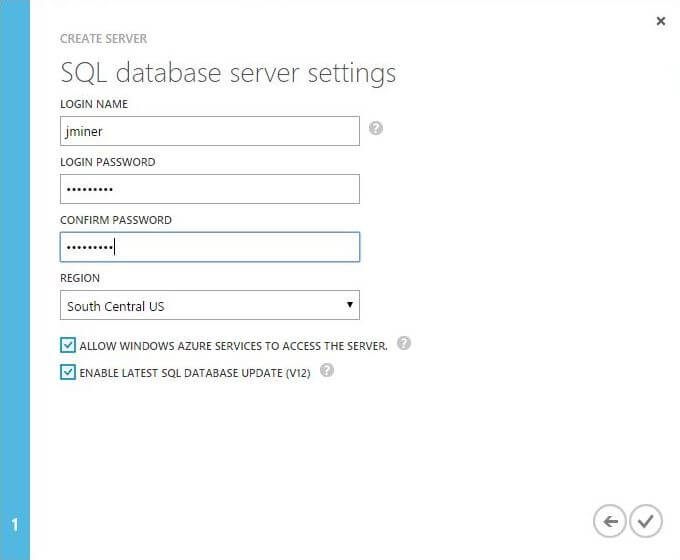
The login name and password are the very important. This account is equivalent to the [sa] account for a on premise mix security installation. The region determines which Azure data center the server and database are deployed to. Yes, leave the next two defaults. Select the check box to create the database and optional server right now.
Azure Management Portal
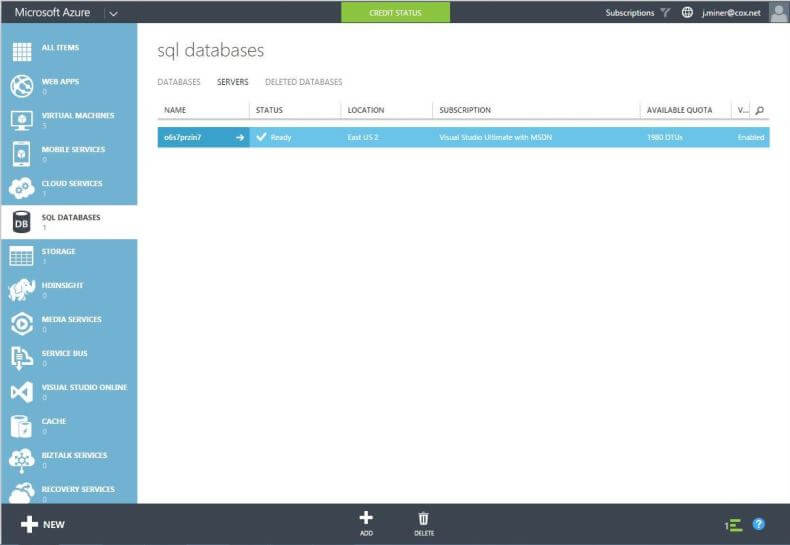
Important server or database level settings are managed via the portal. We can select the servers page to show our newly created server.
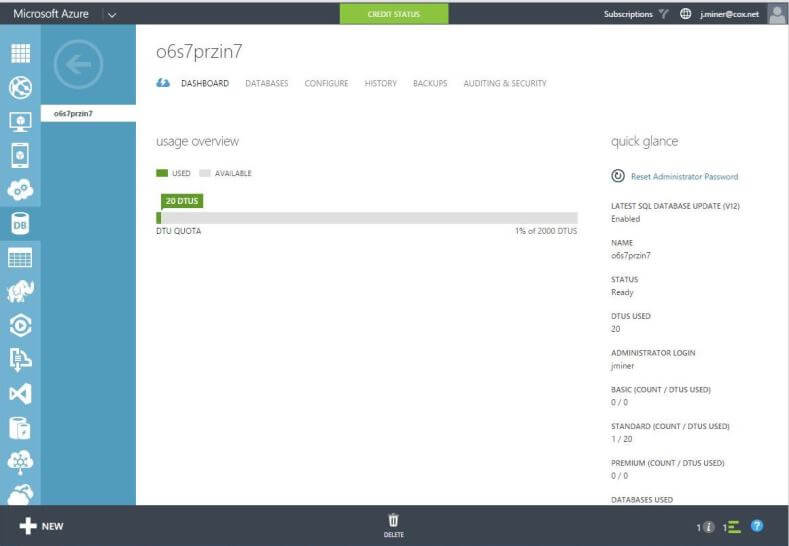
The dashboard page for our server named o6s7przin7 has some interesting information. It tells us how many databases have been deployed and the remaining DTUs. If you forget your administrative login or password, this page can help. The name of the login is on this page. Also, there is a link to launch the reset password pop up window.
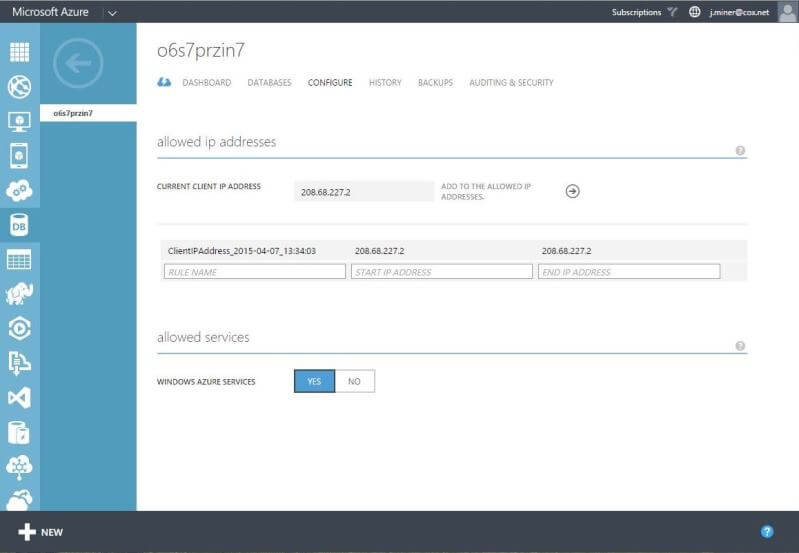
The configure page controls the firewall for the Azure SQL database. If your development laptop is not white listed as a allowed IP, you will not be able to access your pubs database using SQL Server Management Studio. A date and time stamp are saved with the IP when granting access.
Pubs Azure SQL Database
When SQL Server 2000 shipped to the public, two sample databases named northwind and pubs were included for developers to play with. You can still download the sample database scripts from the Microsoft site.
I am going to re-create the pubs database schema in Azure. Because Azure SQL databases do not support file commands, the source code had to be slightly changed to remove those statements. Also, the USE statement is not supported. But do not allow that to stop us. Just open a new connection to the correct database.
The below download file can be used to create your own pubs database on your Azure SQL Server.
So why did I do this?
I wanted to show that older, legacy databases can be moved to the cloud with little to no changes. If we were not using the V12 preview, the sample code would not work since heaps, tables without indexes, were not supported.
Legacy databases that stayed away from file base features are the easiest to migrate. Features like FILESTREAM, FILETABLE or FILEGROUP are not supported in Azure SQL Database. Please see this MSDN page for supported, partially supported and not supported features.
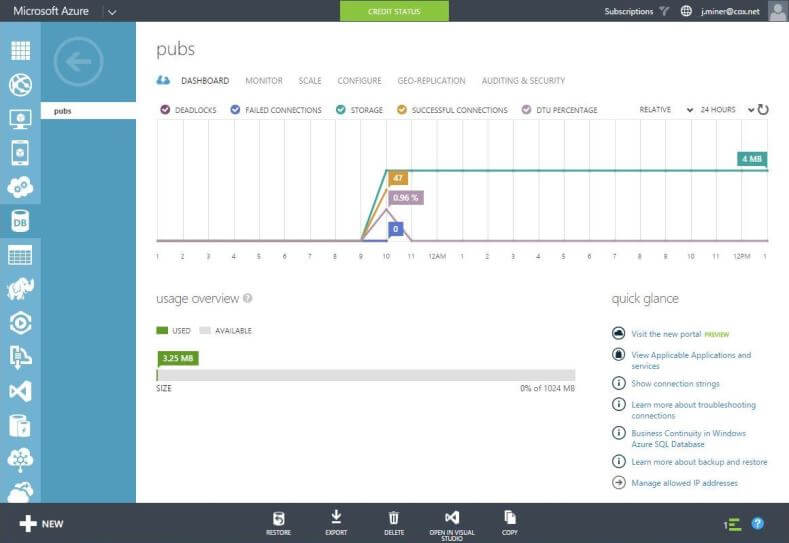
The database dashboard page shown below has some interesting information. It keeps track of deadlocks, failed/successful connections, storage usage and percent DTU over time.
Enabling Distributed Queries in SQL Server
Unfortunately, we are only half done with this tip. All the information above was designed to set the background for the main event. We now have our on-line ordering system in the form of the pubs database.
Since linked servers can use ad hoc distributed queries, we should turn on that advance server level option.
Execute the code below to accomplish this task.
/*
    Turn on ad hoc distributed queries
*/

-- Just shows standard options
sp_configure;
GO

-- Turn on advance options
sp_configure 'show advanced options', 1;
GO

-- Reconfigure the server
reconfigure;
GO

-- Turn on ad hoc dist queries
sp_configure 'Ad Hoc Distributed Queries', 1;
GO

-- Reconfigure the server
reconfigure;
GO
Remove an Existing SQL Server Linked Server
Many of the system stored procedures that deal with Linked Servers return tables as output. I took the liberty of creating table variables to store the output of such stored procedures. The next step determines if our linked server named MyAzureDb exists. If it does, we should drop any logins and the linked server definition.
The sp_linkedservers system stored procedure returns a listing of servers. The results are stored in a table variable named@LinkServers. The code searches through the table variable for our linked server name. If it exists, we drop the definition using thesp_dropserver system stored procedure.
Execute the code below to accomplish this task.
/*
    Remove existing linked server
*/

-- Table to hold server info
DECLARE @LinkServers TABLE
(
    SRV_NAME sysname NULL,
    SRV_PROVIDERNAME nvarchar(128) NULL,
    SRV_PRODUCT nvarchar(128) NULL,
    SRV_DATASOURCE nvarchar(4000) NULL,
    SRV_PROVIDERSTRING nvarchar(4000) NULL,
    SRV_LOCATION nvarchar(4000) NULL,
    SRV_CAT sysname NULL
);

-- Are there any existing linked servers
INSERT INTO @LinkServers
    EXEC sp_linkedservers;

-- Show servers
SELECT * FROM @LinkServers;

-- Remove servers / logins
IF EXISTS (SELECT * FROM @LinkServers WHERE SRV_NAME like 'MyAzureDb')
    EXEC sp_dropserver 'MyAzureDb', 'droplogins';
GO
SQL Server Linked Server Creation
There are many OLE DB providers that can be called to connect to various data sources. Usually this involves the installation of a driver on the server. Since we want to connect to a SQL Server database in the cloud, we are going to use the Native Client driver named SQLNCLI as the @provider. This driver is installed as part of a normal on premise installation. Please see this MSDN pagefor more information.
The @server parameter is how we refer to the server and the @catalog parameter is the default database. Last but not least, we need to know the fully qualified DNS address of our Azure Server and the TCP/IP port number. This information is stored as the@datasrc parameter.
Calling the sp_addlinkedserver system stored procedure creates a definition for our cloud database. However, if we try to reference any tables in the pubs database using a four part notation, the call will fail. This is because the default security context of linked server is "make the connection using the security context of the current connection".
What does Azure know about my AD user account?
The missing piece of the puzzle is to change the security context to "make connection using known remote user and password". Calling the sp_addlinkedsrvlogin system stored procedure with a valid @rmtuser and @rmtpassword parameters fixes this issue. The sp_testlinkedserver system stored procedure can even be used to test the validity of our connection.
Execute the code below to create our linked server.
/*
    Create new linked server
*/

-- Make a link to the cloud
EXEC sp_addlinkedserver
   @server=N'MyAzureDb',
   @srvproduct=N'Azure SQL Db',
   @provider=N'SQLNCLI',
   @datasrc=N'o6s7przin7.database.windows.net,1433',
   @catalog='pubs';
GO

--Set up login mapping
EXEC sp_addlinkedsrvlogin
    @rmtsrvname = 'MyAzureDb',
    @useself = 'FALSE',
    @locallogin=NULL,
    @rmtuser = 'jminer',
    @rmtpassword = 'SQLtip$2015'
GO

-- Test the connection
sp_testlinkedserver MyAzureDb;
GO
Test the SQL Server Linked Server
Referring back to our business requirements, our boss wants to download sales data from the on-line ordering system. We know the data exists in the sales table in the pubs database.
The following SELECT query using our new linked server in a four part notation should do the trick. The output from the test is shown below.
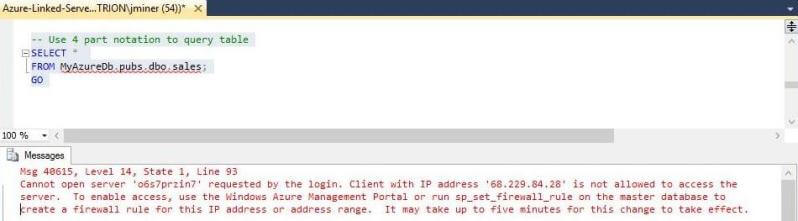
The called failed to execute correctly. It is very import to remember that Azure SQL database has a built in firewall.
We developed the solution at work. But started our testing after we connected to the internet at home. Because we our using our home provider, we have a new TCP/IP address. If we go back to the Azure Server configuration page and white list this new address, we should be ready to go.
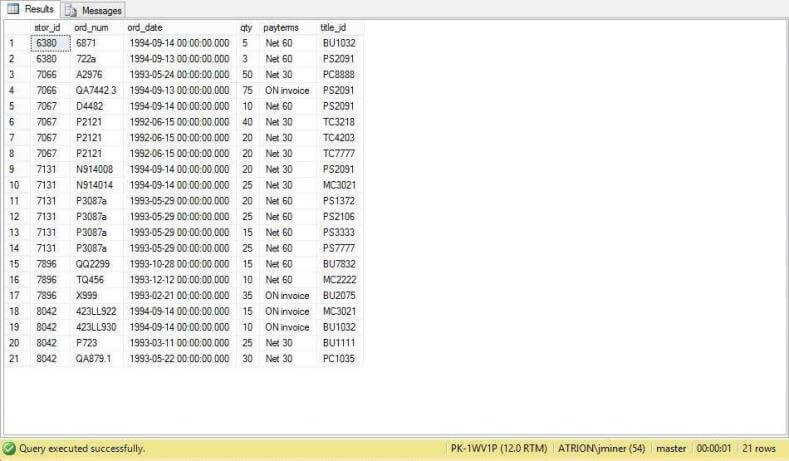
The output below shows the 21 sample records in the sales table.
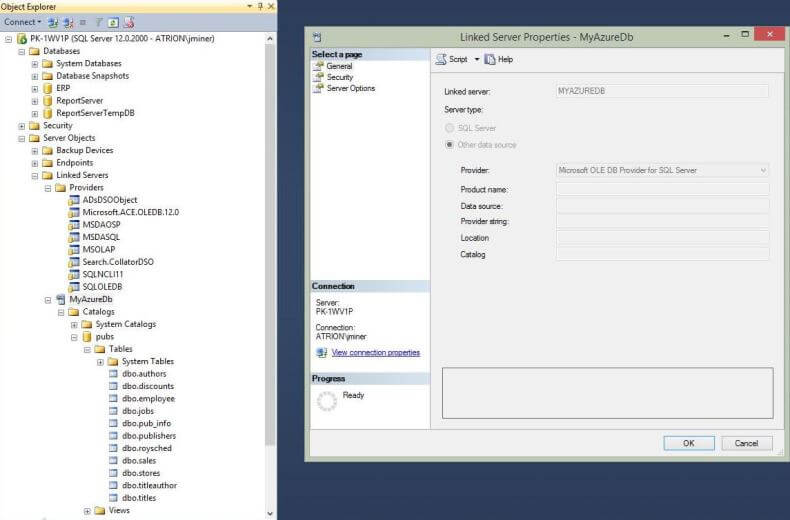
Our MyAzureDb linked server definition is located under server objects in SQL Server Management Studio. We can drill into this object and see the available providers. If we drill into our defined server, we can see all the tables and views that are defined in thepubs database.
Local Staging Database
To round out this example, we need to create a local staging table in our on premise ERP database. The code below creates a local database using default file locations and growth/size options. A stage schema is created with a sales table. After executing the code, we are all ready to move data from the cloud to our on premise system.
/*
    Create local ERP database
*/

-- Which database to use.
USE [master]
GO

-- Delete existing databases.
IF EXISTS (SELECT name FROM sys.databases WHERE name = N'ERP')
    DROP DATABASE [ERP]
GO

-- Add new databases.
CREATE DATABASE [ERP]
GO


/*
    Create stage Schema
*/

-- Which database to use.
USE [ERP]
GO

-- Delete existing schema.
IF EXISTS (SELECT * FROM sys.schemas WHERE name = N'STAGE')
    DROP SCHEMA [STAGE]
GO

-- Add new schema.
CREATE SCHEMA [STAGE] AUTHORIZATION [dbo]
GO


/*
    Create sales Table
*/

-- Delete existing table
IF  EXISTS (
    SELECT * FROM sys.objects
    WHERE object_id = OBJECT_ID(N'[STAGE].[SALES]') AND
    type in (N'U'))
DROP TABLE [STAGE].[SALES]
GO

CREATE TABLE [STAGE].[SALES]
(
   stor_id char(4) NOT NULL,
   ord_num varchar(20) NOT NULL,
   ord_date datetime NOT NULL,
   qty smallint NOT NULL,
   payterms varchar(12) NOT NULL,
   title_id varchar(6) NOT NULL,
   CONSTRAINT PK_SALES PRIMARY KEY CLUSTERED (stor_id, ord_num, title_id)
)
GO
Manipulating Data
The key to using linked servers is to reference the table using a four part notation: server, database, schema and table names. The code below solves our initial problem. It moves all the sales data from the cloud to the on premise database. If this was a production system, we would use a mechanism such as a flag column to indicate new data to download.
/*
    Move data (cloud 2 local)
*/

-- Move data from cloud to on premise
INSERT INTO [ERP].[STAGE].[SALES]
SELECT *
FROM [MyAzureDb].[pubs].[dbo].[sales];
GO

-- Show local copy of data
SELECT * FROM [ERP].[STAGE].[SALES]
To round out our discussion, Linked Servers are a two way street. The code below executes SELECT, UPDATE, DELETE andINSERT statements against the data in our pubs Azure SQL database. In summary, if you do not have time to create a SSIS package to move data from Azure to your local data mart, consider using a Linked Server.
/*
    CRUD statements against cloud data
*/

-- Read record
SELECT * FROM [MyAzureDb].[pubs].[dbo].[sales];

-- Update record
UPDATE S
SET ord_date = getdate()
FROM [MyAzureDb].[pubs].[dbo].[sales] S
WHERE
  stor_id = 8042 and
  ord_num = 'P723' and
  title_id = 'BU1111'

-- Delete record
DELETE
FROM [MyAzureDb].[pubs].[dbo].[sales]
WHERE
  stor_id = 8042 and
  ord_num = 'P723' and
  title_id = 'BU1111'

-- Insert record
INSERT INTO [MyAzureDb].[pubs].[dbo].[sales]
SELECT *
FROM [ERP].[STAGE].[SALES]
WHERE
  stor_id = 8042 and
  ord_num = 'P723' and
  title_id = 'BU1111';
Next Steps
- There are many more system stored procedures that retrieve meta data for linked servers.
Since a linked server is a OLE DB provider, the target platform does not have to be SQL Server.
How do I use the system stored procedures to understand my linked server data source?
- One nice feature about Azure SQL database is that any client systems have to be white listed in the firewall.
However, we did pass our credentials to the server in an unsecured format.
What are the different ways in which a secured connection can be established with Azure SQL Database?