This article explores how to use Entity Framework 6 to manage the retrieval and display of hierarchical data such as you might find in a menu system. There are a number of existing items on the Internet that cover the same topic, but most of them seem unnecessarily complex and don't include any information about displaying the data once it has been retrieved.
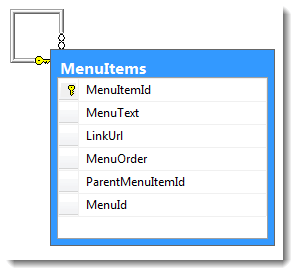
Each menu item has a ParentMenuItemId which is nullable. If a specific item is a top level item, the value will be null. Otherwise the value will be the item to which it is related. The MenuId links the items to a specific menu. This is how the two entities are defined using C#:
The Menu Entity
using System.Collections.Generic;

public class Menu
{
    public int MenuId { get; set; }
    public string MenuName { get; set; }
    public ICollection<MenuItem> MenuItems { get; set; }
}
The MenuItem Entity
using System.Collections.Generic;
using System.ComponentModel.DataAnnotations;
using System.ComponentModel.DataAnnotations.Schema;

public class MenuItem
{
    public int MenuItemId { get; set; }
    [StringLength(50)]
    public string MenuText { get; set; }
    [StringLength(255)]
    public string LinkUrl { get; set; }
    public int? MenuOrder { get; set; }
    public int? ParentMenuItemId { get; set; }
    public virtual MenuItem Parent { get; set; }
    public virtual ICollection<MenuItem> Children { get; set; }
    public int MenuId { get; set; }
    public virtual Menu Menu { get; set; }
}
The self-referencing relationship is defined through the nullable ParentMenuItemId property paired with the virtual Parent property. Any children are taken care of through the virtual ICollection<MenuItem> Childrenproperty. The convention that Code First Migrations needs in order to generate the appropriate tables and keys is a foreign key property named "Parent" (ParentMenuItemId) paired with a property named "Parent", and a collection named "Children". Here's the Up method that is generated by Code First Migrations for the two entities:
public override void Up()
{
    CreateTable(
        "dbo.MenuItems",
        c => new
            {
                MenuItemId = c.Int(nullable: false, identity: true),
                MenuText = c.String(maxLength: 50),
                LinkUrl = c.String(maxLength: 255),
                MenuOrder = c.Int(),
                ParentMenuItemId = c.Int(),
                MenuId = c.Int(nullable: false),
            })
        .PrimaryKey(t => t.MenuItemId)
        .ForeignKey("dbo.MenuItems", t => t.ParentMenuItemId)
        .ForeignKey("dbo.Menus", t => t.MenuId, cascadeDelete: true)
        .Index(t => t.ParentMenuItemId)
        .Index(t => t.MenuId);

    CreateTable(
        "dbo.Menus",
        c => new
            {
                MenuId = c.Int(nullable: false, identity: true),
                MenuName = c.String(),
            })
        .PrimaryKey(t => t.MenuId);

}
The ParentMenuItemId is nullable, which is what enables top level elements to exist. Here's some code to be executed in the Seed method that creates a Menu object and adds some MenuItems to it:
var menuItems = new List<MenuItem>{
    new MenuItem{MenuText = "First Link", LinkUrl = "#", MenuOrder = 1},
    new MenuItem{MenuText = "Second Link", LinkUrl = "#", MenuOrder = 2},
    new MenuItem{MenuText = "Third Link", LinkUrl = "#", MenuOrder = 3},
    new MenuItem{MenuText = "Fourth Link", LinkUrl = "#", MenuOrder = 4},
    new MenuItem{MenuText = "Fifth Link", LinkUrl = "#", MenuOrder = 5},
    new MenuItem{MenuText = "First Child Link", LinkUrl = "#", MenuOrder = 1, ParentMenuItemId = 1},
    new MenuItem{MenuText = "Second Child Link", LinkUrl = "#", MenuOrder = 2, ParentMenuItemId = 1},
    new MenuItem{MenuText = "Third Child Link", LinkUrl = "#", MenuOrder = 3, ParentMenuItemId = 1},
    new MenuItem{MenuText = "First Grandchild Link", LinkUrl = "#",  MenuOrder = 1, ParentMenuItemId = 7},
    new MenuItem{MenuText = "Second Grandchild Link", LinkUrl = "#", MenuOrder = 2, ParentMenuItemId = 7},
    new MenuItem{MenuText = "Third Grandchild Link", LinkUrl = "#", MenuOrder = 3, ParentMenuItemId = 7}
};
menu.MenuItems = menuItems;
context.Menus.AddOrUpdate(m => m.MenuName, menu);
context.SaveChanges();
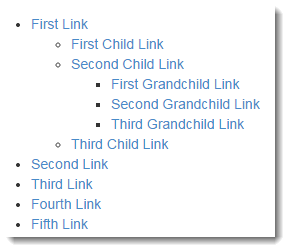
The code creates five parent menu items. Then it creates three further items with a ParentMenuItemId specified. These become children of the first parent item. A further three items are created and related to the item with theMenuItemId of 7, which will actually be the second child item. The LINQ required to retrieve the menu items is very simple:
public ActionResult Index()
{
    var model = new List<MenuItem>();
    using (var context = new EFRecipeContext())
    {
        model = context.MenuItems.Where(m => m.MenuId == 1).ToList();
    }
    return View(model);
}
And the SQL that this generates is also very simple:
SELECT
    [Extent1].[MenuItemId] AS [MenuItemId],
    [Extent1].[MenuText] AS [MenuText],
    [Extent1].[LinkUrl] AS [LinkUrl],
    [Extent1].[MenuOrder] AS [MenuOrder],
    [Extent1].[ParentMenuItemId] AS [ParentMenuItemId],
    [Extent1].[MenuId] AS [MenuId]
    FROM [dbo].[MenuItems] AS [Extent1]
    WHERE 1 = [Extent1].[MenuId]
You could choose to explicitly include the Children navigational property:
model = context.MenuItems.Include(m => m.Children).Where(m => m.MenuId == 1).ToList();
This will alter the SQL to the following:
SELECT
    [Project1].[MenuItemId] AS [MenuItemId],
    [Project1].[MenuText] AS [MenuText],
    [Project1].[LinkUrl] AS [LinkUrl],
    [Project1].[MenuOrder] AS [MenuOrder],
    [Project1].[ParentMenuItemId] AS [ParentMenuItemId],
    [Project1].[MenuId] AS [MenuId],
    [Project1].[C1] AS [C1],
    [Project1].[MenuItemId1] AS [MenuItemId1],
    [Project1].[MenuText1] AS [MenuText1],
    [Project1].[LinkUrl1] AS [LinkUrl1],
    [Project1].[MenuOrder1] AS [MenuOrder1],
    [Project1].[ParentMenuItemId1] AS [ParentMenuItemId1],
    [Project1].[MenuId1] AS [MenuId1]
    FROM ( SELECT
        [Extent1].[MenuItemId] AS [MenuItemId],
        [Extent1].[MenuText] AS [MenuText],
        [Extent1].[LinkUrl] AS [LinkUrl],
        [Extent1].[MenuOrder] AS [MenuOrder],
        [Extent1].[ParentMenuItemId] AS [ParentMenuItemId],
        [Extent1].[MenuId] AS [MenuId],
        [Extent2].[MenuItemId] AS [MenuItemId1],
        [Extent2].[MenuText] AS [MenuText1],
        [Extent2].[LinkUrl] AS [LinkUrl1],
        [Extent2].[MenuOrder] AS [MenuOrder1],
        [Extent2].[ParentMenuItemId] AS [ParentMenuItemId1],
        [Extent2].[MenuId] AS [MenuId1],
        CASE WHEN ([Extent2].[MenuItemId] IS NULL) THEN CAST(NULL AS int) ELSE 1 END AS [C1]
        FROM  [dbo].[MenuItems] AS [Extent1]
        LEFT OUTER JOIN [dbo].[MenuItems] AS [Extent2] ON [Extent1].[MenuItemId] = [Extent2].[ParentMenuItemId]
        WHERE 1 = [Extent1].[MenuId]
    )  AS [Project1]
    ORDER BY [Project1].[MenuItemId] ASC, [Project1].[C1] ASC
It enables population of the Children properties and is only necessary if you needed to reference them in your code. You might want to do this if you prefer to take a strictly object oriented approach to coding. However, all you really need to display this data is a recursive helper like the following BuildMenu method:
@helper BuildMenu(IEnumerable<MenuItem> data, int? parentId = null)
{
    var items = data.Where(d => d.ParentMenuItemId == parentId).OrderBy(i => i.MenuOrder);
    if (items.Any())
    {
        <ul>
            @foreach (var item in items)
            {
                <li>
                    <a href="@item.LinkUrl">@item.MenuText</a>
                    @BuildMenu(data, item.MenuItemId)
                </li>
            }
        </ul>
    }
}
The menu data is passed in to the helper the first time with a parentId value being omitted and therefore defaulting to null. The menu items are queried for all those that have a ParentMenuItemid that matches theparentId value, which on the first iteration yields all those that are root items. If there are any matches, an unordered list is created and each item is displayed as a list item with a link. As each item is rendered, the entire collection is passed back into the BuildMenu method with the parentId parameter set to the id of the current item, so that a check for any children belonging to the current item can be performed. The resulting output looks like this:
Summary
This article introuced the simplest way to model a self-referencing table in SQL Server using Entity Framework Code First Migrations, and looked at how to store and retrieve data that represents a hierarchy. Finally, the data was retrieved from the database and a recursive function was used to manage the display of the hierarchical data.